Installation Guide
Complete step-by-step instructions for Windows 98 Second Edition
Important:
Installing Windows 98 SE will erase data on the target drive if you format it. Always back up important files before
proceeding. This guide is intended for vintage computing enthusiasts and educational purposes.
Before You Begin
Preparation steps to ensure a smooth installation
1
Check System Requirements
Ensure your PC has at least a 486DX/66 MHz processor, 16 MB RAM (24 MB recommended), 500 MB
free hard disk space, and a VGA display. A CD-ROM drive is required for disc-based installation.
Tip: For the best experience, 64 MB of RAM and a Pentium-class processor are recommended.
2
Back Up Your Data
If upgrading from an existing Windows installation, back up all important files to floppy disks, a Zip drive, CDROM drive, or another
storage medium. Once you format the drive, all data will be lost.
Tip: Use Windows Backup (if available) or manually copy your Documents folder to external media.
3
Gather Your Drivers
Collect driver diskettes or CDs for your video card, sound card, modem, network card, and printer. Windows 98 SE includes many
drivers, but having manufacturer drivers ensures the best compatibility. There are driver repositories on the software - system page.
Tip: Check the manufacturer's website (if you have internet access) for the latest Win98 drivers before starting.
4
Have Your Product Key Ready
Locate the 25-character product key on the Certificate of Authenticity sticker or on the CD jewel case. You will need this during
setup. Write it down and keep it accessible.
5
Create a Boot Disk
If doing a clean install, create a Windows 98 CD boot disk. The ISO file is on the Software Page. Burn the ISO to CD using the
“Anyburn” program, also provided on the Software Page.
Tip: The boot disk includes CD-ROM drivers so you can access the installation CD from DOS.
What You'll Need
View
16
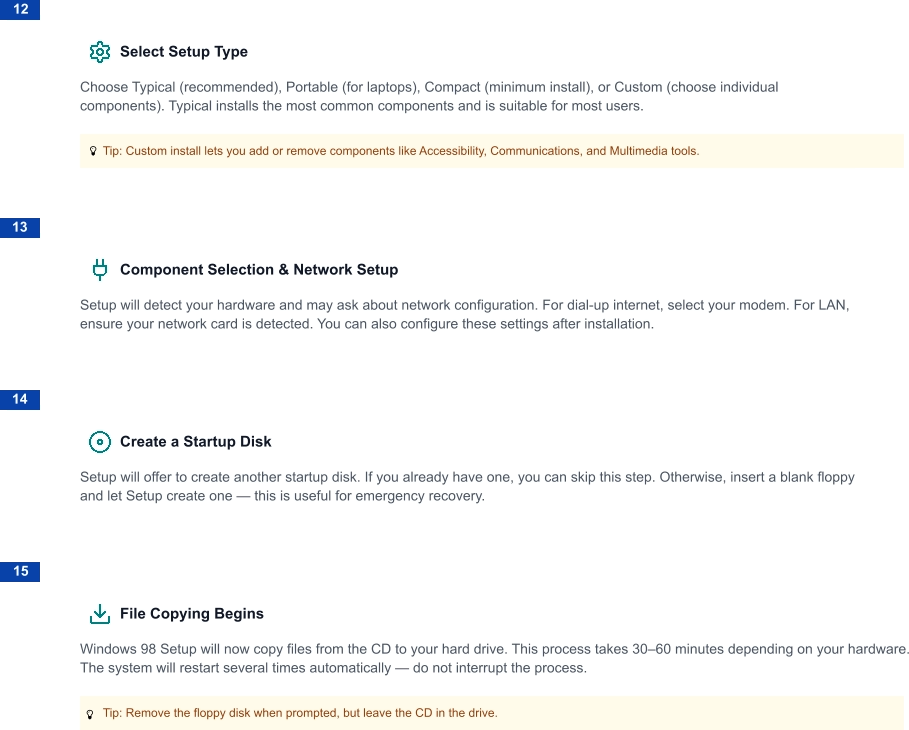
Hardware Detection & Configuration
After restarting, Windows will detect your Plug and Play hardware, install drivers, and configure system settings. You may be
prompted to insert driver disks for components not recognized automatically.
17
Set Your Time Zone & User Info
Configure your time zone, date, and time. Enter your name and company name if desired. These settings can be changed later
through the Control Panel.
18
Final Restart & Welcome!
Windows 98 SE will perform a final restart and present you with the Windows 98 desktop. The Welcome to Windows 98 wizard
will appear, offering a tour of new features. Congratulations — installation is complete!
Tip: First things to do: install your video and sound drivers, and other hardware driver not detected during setup.
Browse Software →
This plugin requires
upgrade
Guide
Win98
SE




1-2 Hours of Your Time
File
Edit
Help
Windows 98 SE CD-ROM
25-Character Product Key
Hardware Driver Disks/CDs
Compatible PC Hardware


Installation Steps
Follow these steps carefully in order

6
Boot from the Startup Disk
Insert the boot CD into the CDROM drive, and restart the PC. At the startup menu, choose "Start computer with CD-ROM support."
This loads DOS with CD-ROM drivers enabled so you can access the installation disc. You can choose “Start Windows 98 Setup
From CD”, but it’s better to use FDISK first.
7
Partition and Format the Drive
Run FDISK from the A: prompt and select "Enable Large Drive Support" to allow FAT32 partitions. Create a primary DOS partition;
however, if FDISK limits you to 8 GB on a larger drive, move the disk to a newer machine as a secondary drive and use partitioning
software to format it as FAT32. If that fails, your BIOS likely has an 8 GB limit, which can be bypassed using "OnTrack Disk
Manager", from the Software page (follow the included instructions). Once partitioned, restart and boot from the Windows 98 CD.
Access the format tool by typing *D:* then CD WIN98, and execute the command FORMAT C: (or use the direct path
D:\WIN98\FORMAT C:).
8
Launch Windows 98 Setup
Boot from the Windows 98 CD, and choose, “Start Windows 98 Setup from CD”.

Tip: Enable Large Disk Support in FDISK if your hard drive is larger than 2 GB to use FAT32.
This will launch you right into the Windows 98 setup screen.

9
Accept the License Agreement
Read through the Microsoft End-User License Agreement. Click "I accept the Agreement" and then click Next to continue. You
cannot proceed without accepting.
10
Enter Your Product Key
Type in the 25-character product key from your Certificate of Authenticity. Double-check each character as typos will prevent
you from proceeding. The product key is included with the Windows 98 download. Click Next when finished.
11
Choose Installation Directory
The default directory is C:\WINDOWS. You can change this, but the default is recommended for maximum compatibility. Click
Next to continue.




Recommended post-install tasks
After Installation

Install video card drivers for proper resolution and color depth
Install sound card drivers for audio support
Install DirectX 9.0c for the best gaming and multimedia support
Install your preferred web browser (Internet Explorer, Opera, Firefox, or Netscape
Navigator)
Configure virtual memory (swap file) settings for optimal performance
Installing Other Software from a USB Drive
1 - 2 Hours of your Time
Install modem / network drivers for internet connectivity
You can install programs and games from a USB flash drive, if your computer has
a USB port, eliminating the need to burn discs. Extract the ISO files on your modern
PC using WinRAR and copy the contents to the flash drive. Then install the Windows 98
USB driver found on the software page under System. Once the driver is installed, your
Windows 98 machine will recognize the flash drive and allow you to access the files normally.
Note: Some games installed from an extracted ISO file, may ask for the CD, when you start it.
It may not work without the CD in the CDROM drive. To get around this, install Dameon Tools,
then copy the complete ISO file to you computer. Mount the ISO with Daemon Tools.